
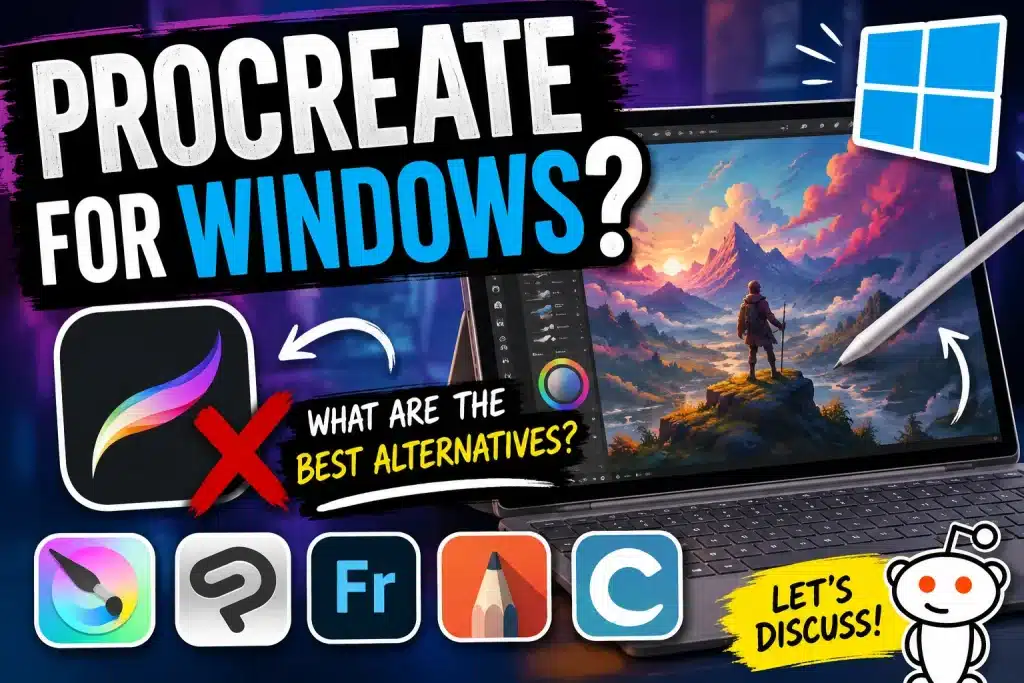
For years, Windows artists have watched iPad users enjoy the slick, gesture-based world of Procreate with a bit of envy. Now, there is a newcomer on the scene called StylusX. It aims to bring that polished, touch-friendly, and intuitive drawing experience directly to Windows, and I had to see if it actually delivers on that promise.
OR
Key takeaways
- StylusX offers a highly responsive, gesture-based drawing experience that feels more like an iPad app than traditional Windows software.
- It excels at small UX details, such as handling dual inputs like opening menus while drawing.
- The default brush settings feel a bit synthetic and light, requiring manual adjustment to get them feeling “right.”
- Certain interface oversights, like the lack of monitor selection and low contrast, show it is still a first-generation product.
A different feel for Windows
When you first fire up StylusX, you will notice it doesn’t really behave like a normal Windows program. There’s no taskbar or top header; it honestly launches more like a video game. Most Windows drawing programs can feel a bit clunky or laggy when you pinch to zoom or pan, but StylusX is surprisingly smooth. It feels native in a way that many other apps just don’t, especially if you are used to the fluid movement of an iPad.
If you do not have a dedicated touchscreen tablet, the app includes a clever little on-screen dial. You can use it to pan or rotate your canvas with your mouse or stylus, which is a pretty ingenious way to handle navigation without needing a trackpad or complex keyboard shortcuts.
Diving into the tools
If you have used Procreate before, you are going to feel right at home. The layout is familiar: brushes and colors on the right, selectors on the top, and sliders for size and opacity on the left.
However, the brushes are a bit of a mixed bag. Out of the box, they felt way too light and had a heavy dose of smoothing that made my lines feel a bit too “perfect” and unnatural. The good news is that you can dive into the settings for each brush. While it takes a little fiddling to turn off that forced smoothing and get the pressure curves dialed in, the tools are definitely there to make them usable.
Comparison of Windows drawing options
| Software | Best for | Notes |
|---|---|---|
| StylusX | iPad-like experience | New, responsive, some UI quirks |
| Adobe Fresco | Free sketching | Reliable, but Adobe could change terms |
| Leonardo | Performance | Very responsive on older hardware |
| Sketchable | Surface users | Familiar to long-time Windows creators |
The reality of day-to-day use
Even with the smooth performance, it is a first-gen product, and you can tell. Here are a few things that drove me a little crazy:
- The monitor issue: The app insisted on opening on my primary screen. Since I draw on a second monitor, I had to keep changing my Windows display settings just to get started. It’s a huge workflow annoyance.
- Low contrast: The UI sliders are dark gray on a dark background. If you aren’t wearing your glasses, finding the exact spot to adjust your brush size becomes a chore.
- File support: It currently cannot open layered PSD files directly, which is a bit of a bummer since that is the industry standard for most of us.
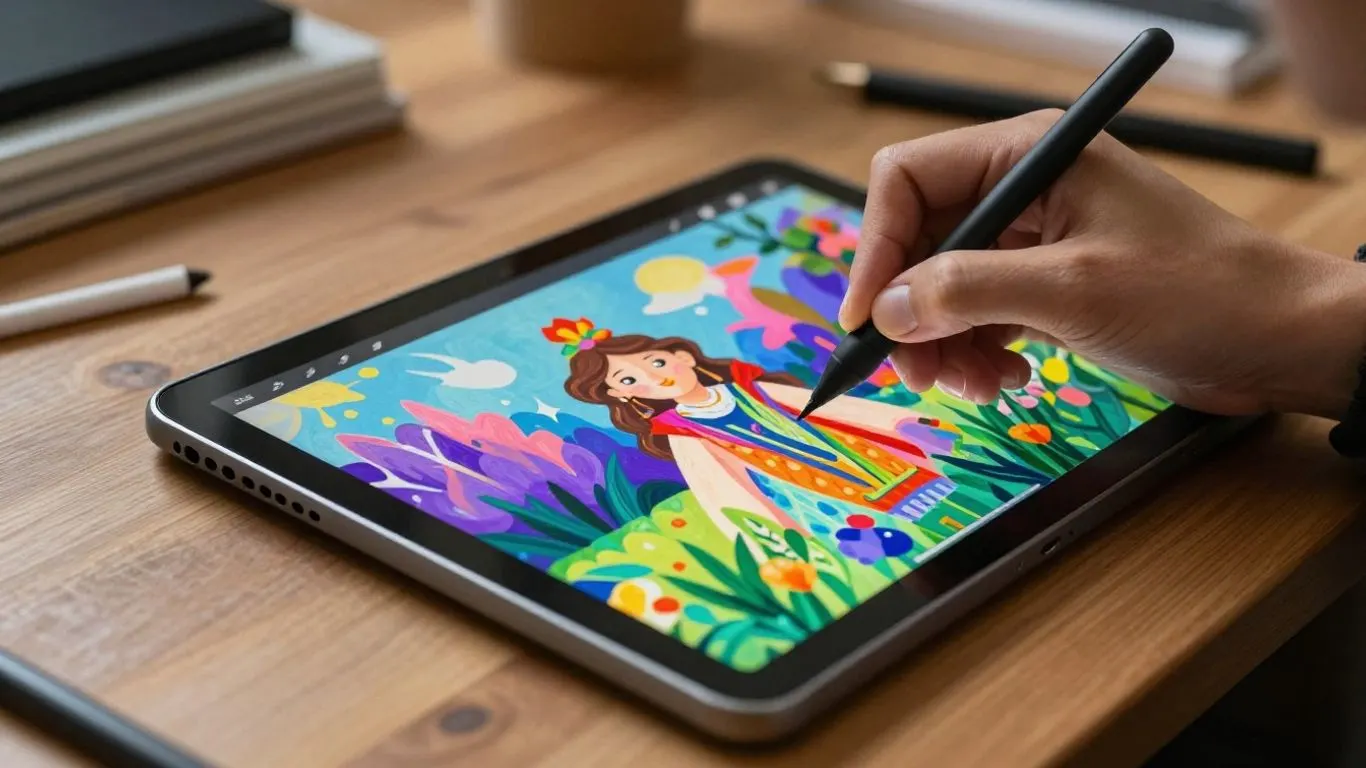
Stylusx MSIX File (Procreate alternative for windows)
Even with these bumps in the road, it is a fun piece of software. It’s certainly a massive step up for Windows users who want that distraction-free, touch-integrated canvas. Whether it replaces your current setup will depend on how much patience you have for early-stage software, but it is definitely worth keeping an eye on.